
How to set up a Mac for deep work
To set up a Mac for deep work, stop notifications with a Focus, hide the Dock, and keep only the window you're working in bright. Then put a timer in view so you know when to stop, and a meeting alert that covers the screen so you can stop watching the clock. Most of this is in System Settings already. The rest takes three small apps, or one download.
1. Make a Work Focus
Open System Settings > Focus and add a Focus called Work. Under Allowed Notifications, add only the people and apps that genuinely can't wait, such as your manager or your calendar. Set a schedule so it turns on at the hours you protect, for example 9 to 12 every weekday. With "Share across devices" on, your iPhone goes quiet too.
Leave Calendar on the allowed list, or make sure your meeting alert app can still reach you. A Focus that hides your 11 o'clock meeting causes more trouble than the notifications it blocked.
2. Clear the Dock, menu bar and desktop
- System Settings > Desktop & Dock: turn on "Automatically hide and show the Dock". Badges on Dock icons stop catching your eye.
- System Settings > Control Centre: switch off the menu bar items you don't need, so fewer icons change while you work.
- Right-click the desktop and choose Use Stacks to fold loose files into piles, or turn off desktop items in Finder settings.
- Open the files and apps for the task before you start, so you're not hunting for them once the timer is running.
3. Keep one window bright
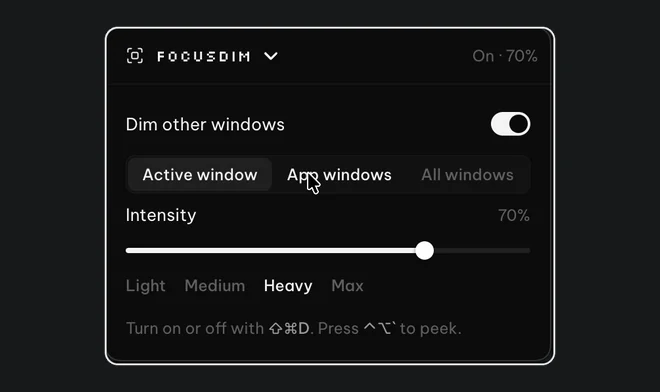
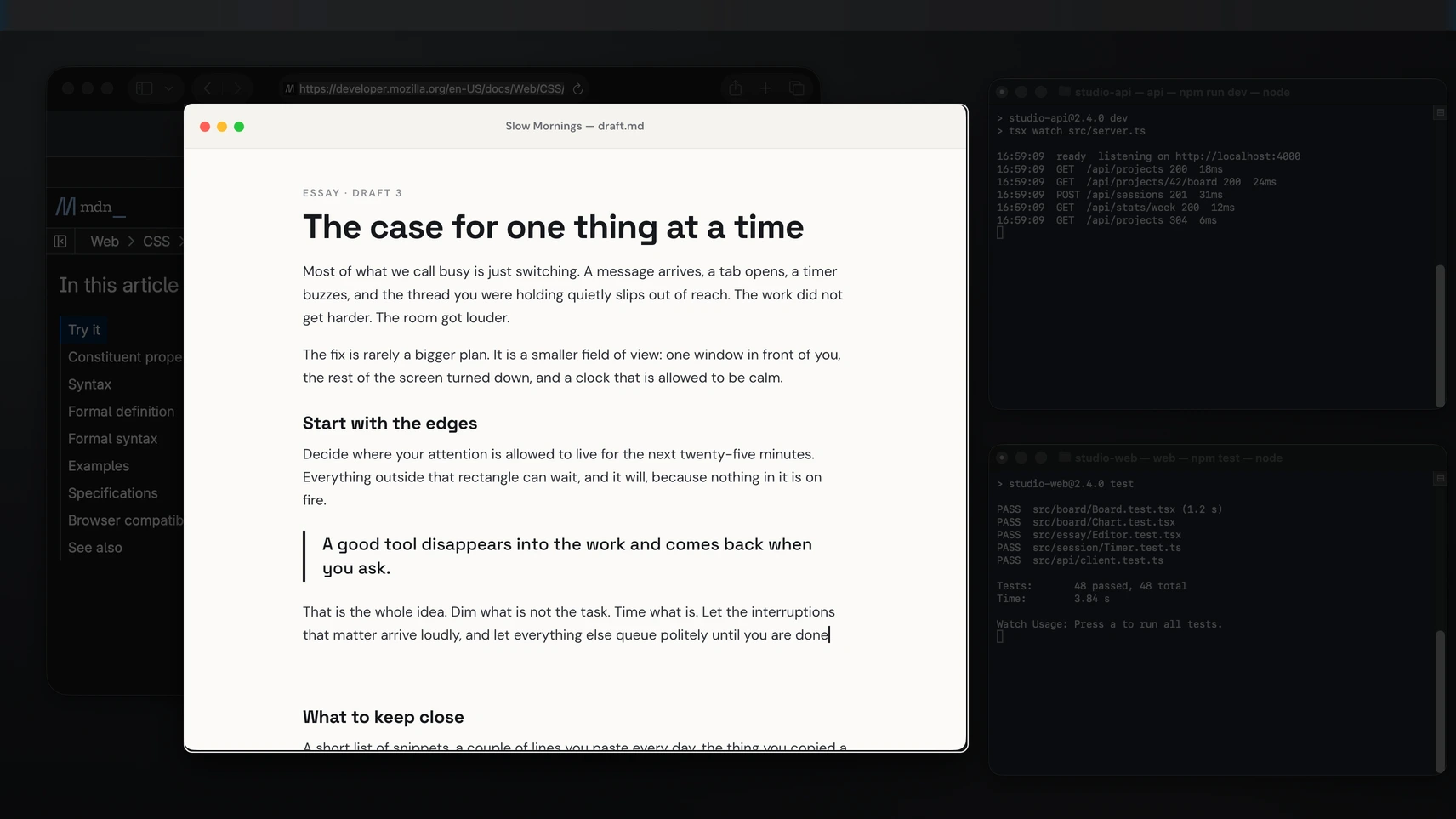
Full screen and Hide Others give you one window, but most work needs references nearby: notes beside a draft, documentation beside code. FocusDim leaves those windows where they are and dims everything except the one you're using. Press ⌘⇧D to switch it on. App windows mode keeps every window from the current app bright, and Peek (⌃⌥`) shows everything for a few seconds when you need to find something. The steps are in how to dim background windows on a Mac.
Step 3 in one shortcut
FocusDim: $9.99 once
Dims every window except the one you're using, on Mac and Windows.
4. Work in sessions with a visible timer
Deep work is easier to start when it has an end. Pick one task, set a timer and work until it rings. Liquid Focus defaults to 25 minutes with a 5-minute break, and you can set sessions anywhere from 1 to 180 minutes; many people use 50 or 90 for deep work. Its mini timer floats over your windows, so the time left is always in view, and the stats keep a daily streak. Be Focused is a good free alternative, and the Clock app works in a pinch. See the best Pomodoro timers for Mac.
5. Let meetings come to you
Part of what breaks a long session is checking whether a meeting is coming up. ScreenSlap removes the need to check. It reads your calendar from an iCal link and covers the screen 1 to 30 minutes before each meeting, with a Join button. MeetingBar is a free option that shows a countdown in the menu bar. See full-screen meeting alerts on a Mac.
6. Keep what you copy
Research for long work means copying a lot: quotes, links, snippets of code. A clipboard manager keeps them all, so you don't break off to find a link again. QuickBoard opens with ⌘⇧V and searches your history. See clipboard history on a Mac for the free options too.
One download for the app parts
FocusDim, Liquid Focus, ScreenSlap and QuickBoard all come in the PeakFlow app, and you can switch each one on or off. They live in the menu bar with no Dock icon. All four are free for 30 days, then $29.99 once for the set or $9.99 for any one. See what the four Mac apps they compare with cost on their own.
On a Windows PC? Read the deep work setup for Windows.
Questions
How do I turn off notifications for deep work on a Mac?
Create a Focus in System Settings > Focus, allow only the people and apps you need, and give it a schedule. It silences everything else while it's on, and can do the same on your iPhone.
How long should a deep work session be?
There's no single right length. 25 minutes is the classic Pomodoro, and many people use 50 or 90 minutes for deep work. Liquid Focus lets you set anything from 1 to 180 minutes.
Can I dim other windows on a Mac while I work?
Yes, with an app. FocusDim dims every window except the one you're using and turns on with ⌘⇧D. macOS has no built-in setting for it.
Do the PeakFlow tools show in the Dock?
No. They live in the menu bar with no Dock icon.
How much does the PeakFlow deep work setup cost?
All four tools are free for 30 days with no account or card. Then they cost $29.99 once for the set, $9.99 for any one tool, or $2.99 a month for Pro.
Set up your Mac for deep work
One download with a dimmer, a timer, a meeting alert and a clipboard manager. Free for 30 days.
Download free for Mac