Full-screen meeting alerts on a Mac
A Calendar notification on a Mac slides in at the corner and slides away again, so it's easy to miss when you're deep in something. First, make it stay: in System Settings > Notifications > Calendar, set the alert style to Persistent (called Alerts on older macOS), and it waits until you click it. If you still miss meetings, use an app that covers the whole screen. MeetingBar is free, In Your Face is a subscription, and ScreenSlap costs $9.99 once.
Make Calendar's own alerts harder to miss
- Open System Settings > Notifications and click Calendar.
- Set the alert style to Persistent, called Alerts on older versions of macOS. A persistent notification stays in the corner until you close it or snooze it. Banners leave after a few seconds.
- In the Calendar app, open Settings > Alerts and set a default alert time for events, for example 5 minutes before.
Check that Calendar is allowed through any Focus you use, or the alert waits silently until the Focus ends. This costs nothing and fixes the problem for many people. It's still a small box in a corner, which is why full-screen alert apps exist.
Apps that cover the screen before a meeting
We make ScreenSlap, so read this table with that in mind. Prices are in US dollars.
| App | Price | When it alerts | Calendar connection |
|---|---|---|---|
| MeetingBar | Free, open source | Full screen when the meeting starts; countdown in the menu bar all day | Calendar.app calendars or Google sign-in |
| In Your Face | $3.99 a month, $24.99 a year or $69 once | Your choice, several alerts per event | Google and Microsoft sign-in |
| ScreenSlap | $9.99 once after a 30-day trial | 1 to 30 minutes before, full screen | An iCal link from Google, Outlook and others |
How ScreenSlap works on a Mac
ScreenSlap connects through your calendar's iCal link, so you don't sign in to Google or Microsoft. In Google Calendar, open the calendar's settings and copy the secret address in iCal format. In Outlook, publish your calendar and copy the ICS link. Paste it into ScreenSlap, and your next meetings appear in its menu bar panel.
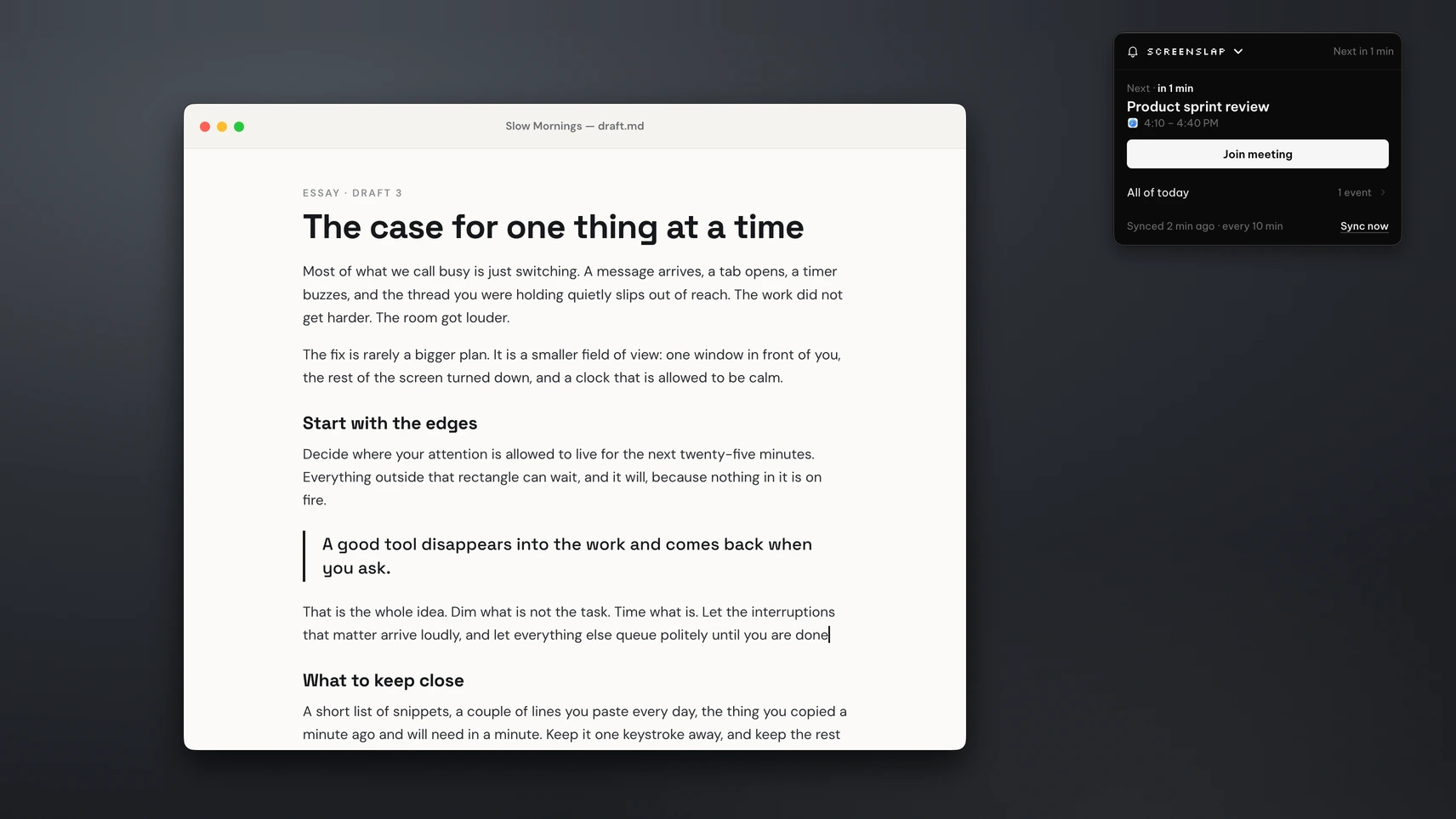
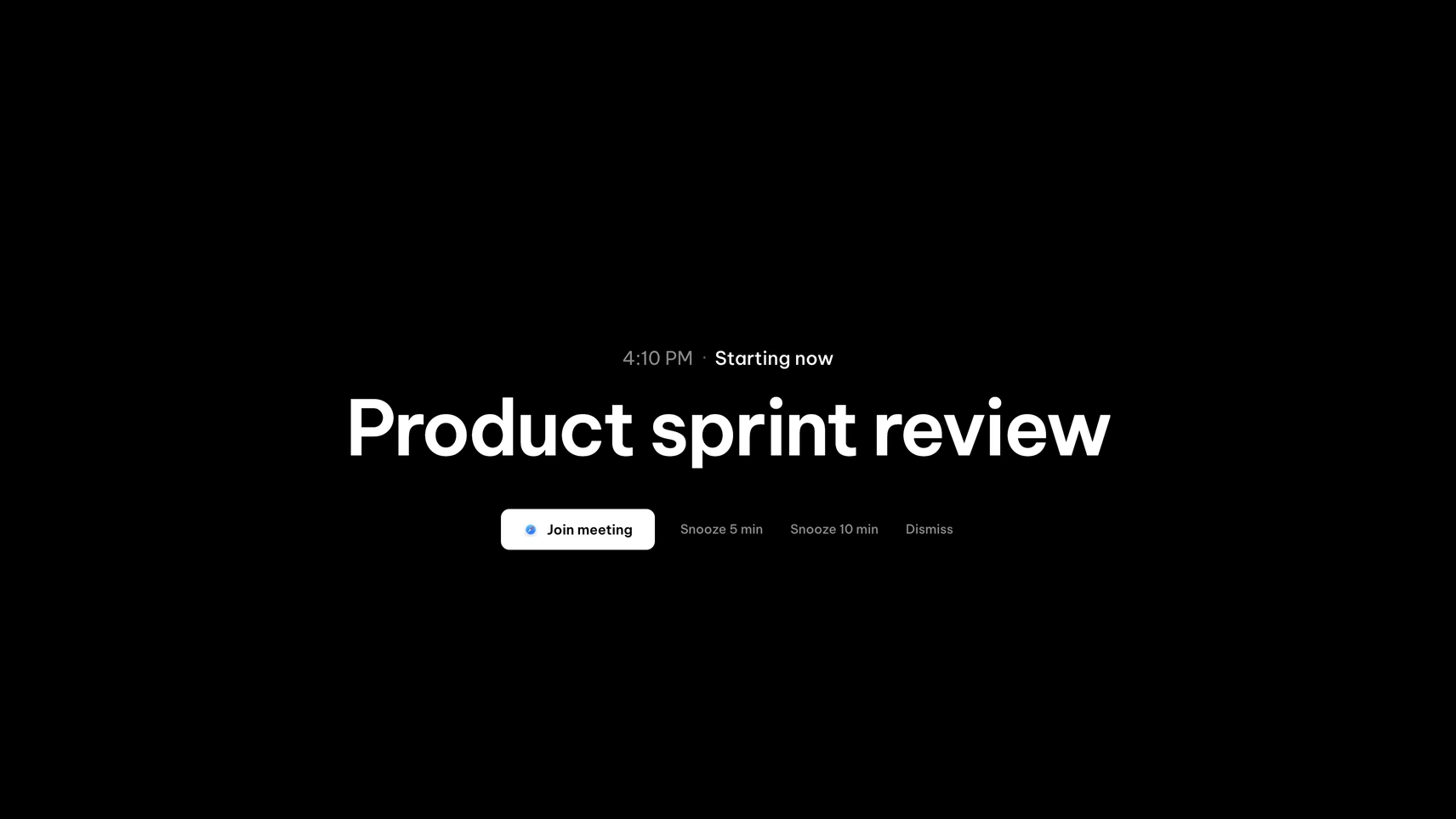
A minute before each meeting, or up to 30 minutes if you prefer, the alert covers every display, or only the one you choose. Press Join to open the meeting in Zoom, Google Meet, Microsoft Teams, Webex, Slack huddles and eight other services. Snooze for 5 or 10 minutes if you need to finish a sentence. If two meetings overlap, the alert tells you what else is on. You can add a sound and set the alert to close by itself after 10 seconds to 5 minutes. Press "Send a test alert" to see it before your next call.
ScreenSlap is one of four tools in the PeakFlow app. The ScreenSlap page lists every setting.
Which one to pick
- Start with Calendar's persistent alerts. If they work for you, you're done.
- If you glance at your menu bar often, MeetingBar is free and very good. Read MeetingBar vs ScreenSlap for where each one wins.
- If your company blocks iCal links, or you want alerts on your iPhone and Apple Watch, In Your Face is the simpler route. See In Your Face compared with ScreenSlap.
- If you miss meetings because you're absorbed in work and want the warning a few minutes early, paid for once, try ScreenSlap.
On a Windows PC? Read full-screen meeting alerts on Windows.
Questions
How do I make Calendar alerts stay on screen on a Mac?
Open System Settings > Notifications > Calendar and set the alert style to Persistent (Alerts on older macOS). The notification then stays until you close or snooze it.
Is there a free full-screen meeting reminder for Mac?
Yes. MeetingBar is free and open source. It shows your next meeting in the menu bar and a full-screen reminder when the meeting starts.
Does ScreenSlap work with Google Calendar and Outlook?
Yes, through an iCal link. Copy your Google Calendar's secret address in iCal format, or an Outlook published calendar link, and paste it into ScreenSlap. It doesn't sign in to your Google or Microsoft account.
How early does ScreenSlap alert me?
One minute before by default, and you can set anything from 1 to 30 minutes.
Which video services can ScreenSlap join?
Zoom, Google Meet, Microsoft Teams, Webex, GoToMeeting, Skype, Discord, Slack huddles, Around, Whereby, Jitsi, BlueJeans and Amazon Chime.
How much does ScreenSlap cost?
It's free for 30 days with no account or card. Then ScreenSlap is $9.99 once, all four PeakFlow tools are $29.99 once, or Pro is $2.99 a month.
Never miss the next one
Download for Mac, paste your calendar link and send yourself a test alert. Free for 30 days, then $9.99 to keep ScreenSlap.
Download free for Mac