
How to dim everything except the active window
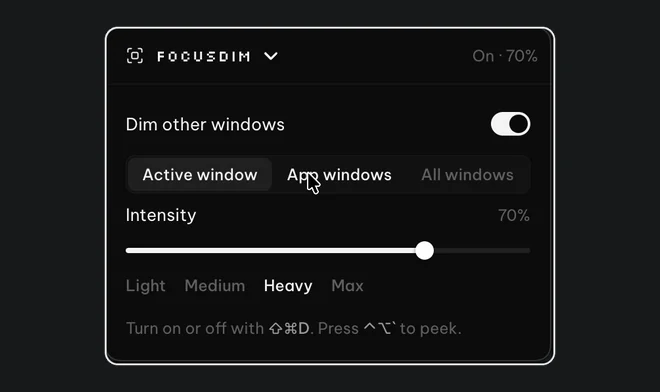
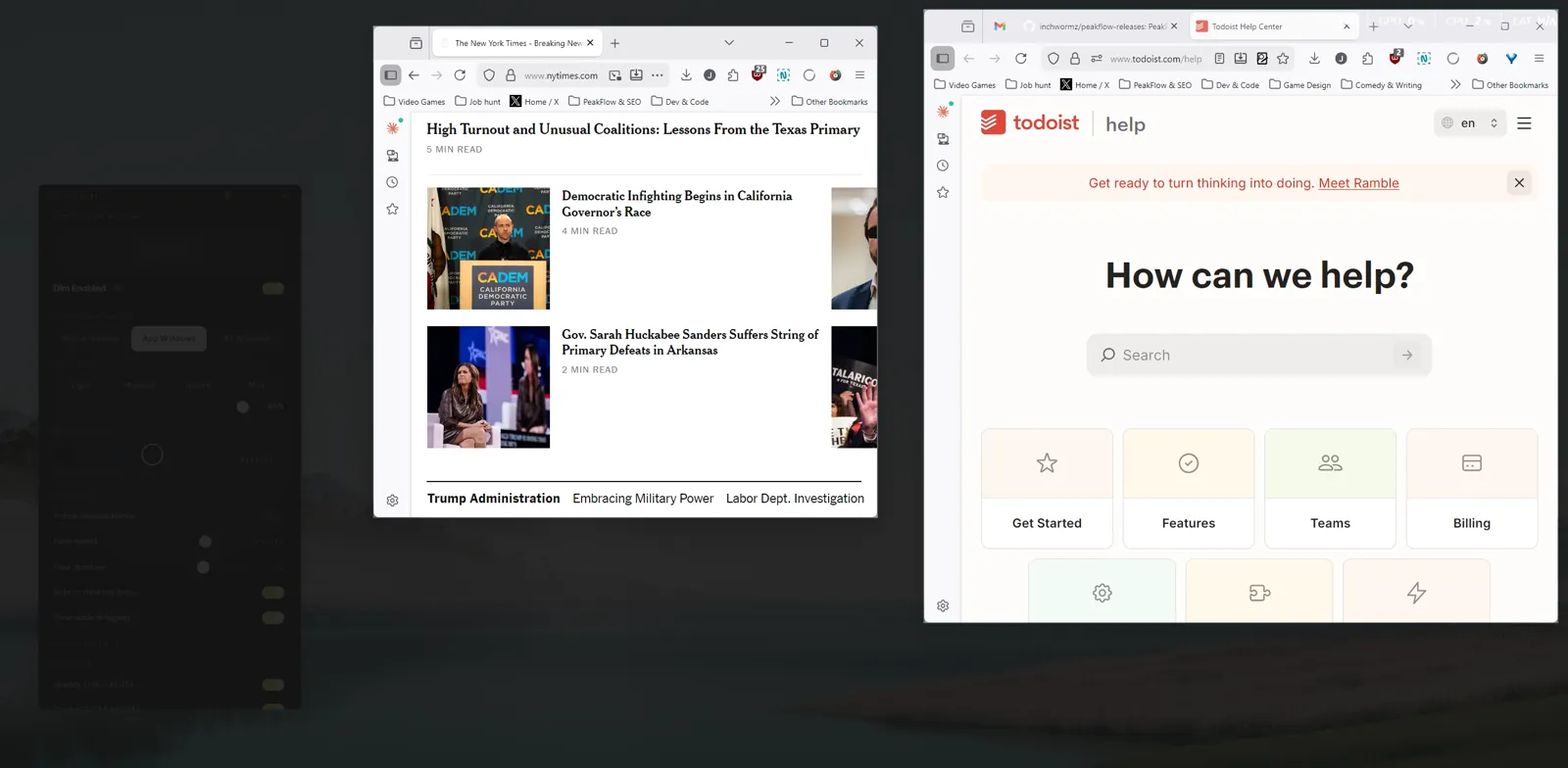
Windows and macOS have no setting that dims every window except the one you're using, so you need a small app. FocusDim lays a dark layer over the rest of the screen and leaves the window you're working in bright. When you click another window, the bright gap moves to it. Press Ctrl+Shift+D on Windows or ⌘⇧D on a Mac to turn it on and off.
Why the operating system can't do it
Windows 11 can colour the border of the active window (Settings > Personalization > Colors), and macOS can hide every other app with ⌥⌘H. Neither keeps the other windows on screen at lower brightness. Hiding them takes away the notes, documentation or chat you still glance at, which is why people look for a dimmer instead.
How to set it up with FocusDim
- Download the PeakFlow app. One installer covers Windows 10 and 11; on a Mac there are separate downloads for Apple silicon and Intel, for macOS 13 or later.
- Open FocusDim from the PeakFlow icon in the system tray (Windows) or the menu bar (Mac). On a Mac, allow Accessibility when asked, so FocusDim can see which window is in front.
- Switch it on, or press Ctrl+Shift+D on Windows and ⌘⇧D on a Mac.
- Set the strength. The default is 60%, and the slider runs from a light tint at 10% to nearly black at 90%. Ctrl+Alt+↑ and Ctrl+Alt+↓ change it on Windows; ⌃⌥↑ and ⌃⌥↓ on a Mac.
The dim layer lets clicks through, so you can click any dimmed window to switch to it. The window you leave fades as the new one brightens.
One window, or every window of one app
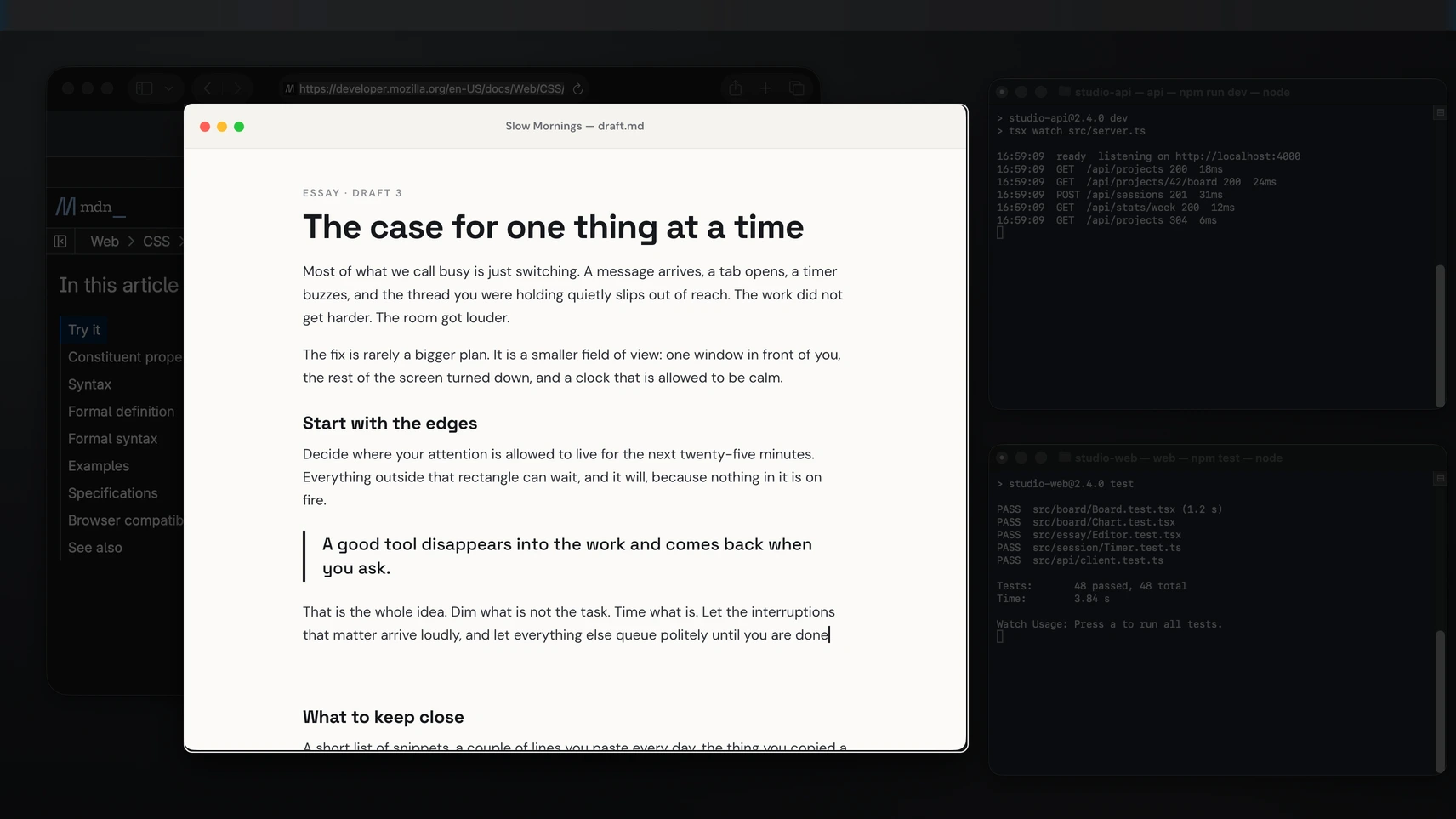
Active window mode keeps only the window you clicked bright. It suits writing a document or reading one long page.
App windows mode keeps every window of the app you're in bright. It suits two browser windows side by side or an editor with a second editor window, because clicking one doesn't plunge the other into the dark.
If the dim gets in the way, these settings handle the common cases:
- Excluded apps are never dimmed. Add your video call app so faces stay visible while you take notes.
- Peek (Ctrl+Alt+` on Windows, ⌃⌥` on a Mac) shows everything at full brightness for 1 to 10 seconds.
- Fade while dragging lifts the dim while you drag a window or file, so you can see where it lands.
- Displays: with two or more monitors, you can switch the dim off on any one of them.
Buy just this tool
FocusDim: $9.99 once
Dims every window except the one you're using, on Mac and Windows.
Other apps that dim inactive windows
| App | Runs on | Price |
|---|---|---|
| FocusDim | Windows 10, 11 and macOS 13+ | $9.99 once, 30 days free |
| HazeOver | Mac only | $4.99 once |
| Focusdim (a separate Mac app) | Mac only | $5 once, with a limited free tier |
| FocusHaze | Windows 10 and 11 | $0.99 on the Microsoft Store, open source |
| LeDimmer, PowerDimmer, Ghoster | Windows | Free |
Prices are as each developer's own page listed them on 23 October 2026. Our guides compare them in more detail: HazeOver alternatives on Mac and Windows and window dimmers for Windows.
Questions
Can Windows 11 dim inactive windows on its own?
No. Windows 11 can colour the active window's title bar and border, but it can't dim the other windows. You need an app such as FocusDim.
Can a Mac dim every window except the active one without an app?
No. macOS can hide other apps with ⌥⌘H or shrink them into Stage Manager, but it has no setting that dims them. FocusDim and HazeOver both add one.
What is the FocusDim shortcut?
Ctrl+Shift+D on Windows and ⌘⇧D on a Mac turn FocusDim on and off.
Can I still click a dimmed window?
Yes. The dim layer passes clicks through, so clicking a dimmed window makes it the bright one.
How much does FocusDim cost?
It's free for 30 days with no account or card. Then FocusDim is $9.99 once, all four PeakFlow tools are $29.99 once, or Pro is $2.99 a month.
Keep one window bright
Download PeakFlow for Windows or Mac, press the shortcut and everything behind your work fades back. Free for 30 days.
Download free