
How to highlight the active window in Windows 11
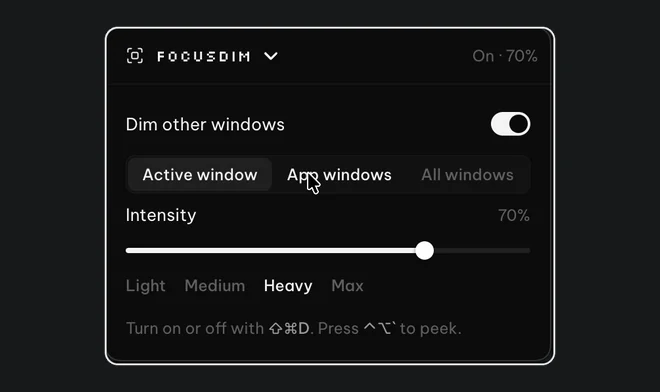
Windows 11 marks the active window with a slightly darker title bar, which is easy to miss with several windows open. There are two fixes. In Settings > Personalization > Colors, turn on Show accent color on title bars and windows borders, so the active window gets a coloured edge. For a stronger signal, FocusDim dims every other window, so the active one is the only bright thing on screen. Press Ctrl+Shift+D to turn it on.
The built-in option: accent colour on borders
- Open Settings with Win+I and go to Personalization > Colors.
- Under Accent color, pick a colour that stands out against your wallpaper and apps. Automatic often picks a muted one.
- Turn on Show accent color on title bars and windows borders.
The active window now has a coloured title bar and a thin coloured edge, and inactive windows stay grey. The border is only a pixel or so wide, and apps that draw their own title bar, such as some browsers and chat apps, may ignore the setting.
Make the active window obvious: dim the rest
A border tells you which window is active if you look for it. Dimming means you don't have to look: the active window is bright and the rest of the screen is darker.
- Install the PeakFlow app and open FocusDim from the tray icon, or press Ctrl+Alt+1.
- Switch it on, or press Ctrl+Shift+D from any app.
- Set the strength. 60% is the default; 30% to 40% is enough if you only want a hint.
- If you also want an edge, turn on Active window border in FocusDim's settings.
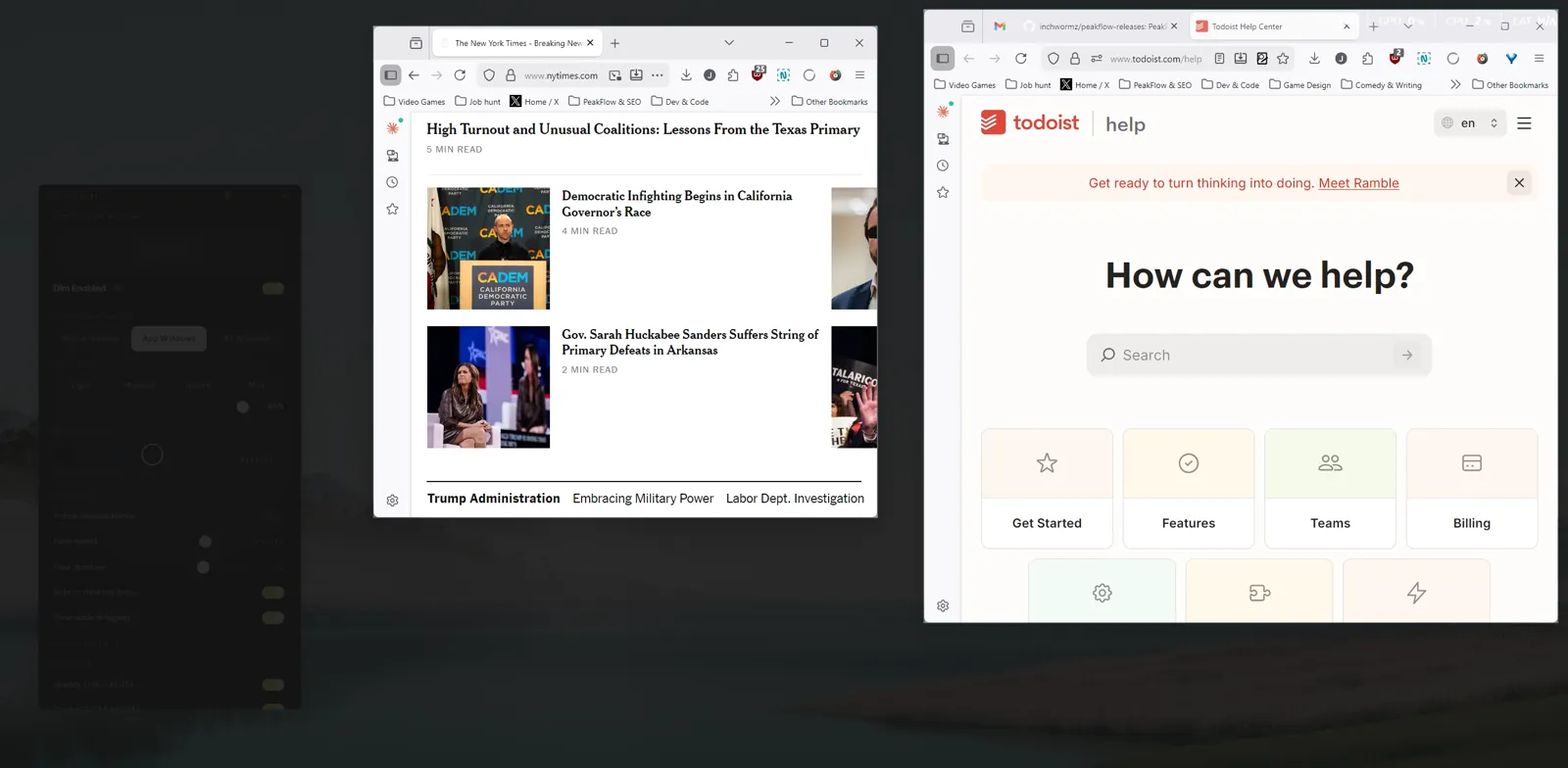
When you click another window, the bright area moves with you. App windows mode keeps every window of the current app bright, which helps with two browser windows side by side.
Buy just this tool
FocusDim: $9.99 once
Dims every window except the one you're using, on Mac and Windows.
Other ways to keep track of the active window
- Snap layouts (Win+Z) arrange windows so they don't overlap, which makes the active one easier to find, though it isn't highlighted.
- Full screen (F11 in most browsers) or maximising with Win+↑ leaves one window in view at a time.
- Dark mode for apps, under Personalization > Colors, makes title bar differences harder to see. If you use it, a border or a dim helps more.
For a full comparison of the dimming tools on Windows, see window dimmers for Windows.
Questions
How do I make the active window border more visible in Windows 11?
Turn on accent colour for title bars and window borders in Settings > Personalization > Colors and choose a bright accent colour. The border stays thin, so for a stronger signal dim the other windows with FocusDim.
Why doesn't my browser show the accent colour?
Some apps draw their own title bar and ignore the Windows setting. FocusDim works with those apps, because it dims around the window rather than changing its title bar.
Does FocusDim work on Windows 10?
Yes. The same installer runs on Windows 10 and Windows 11.
Can FocusDim draw a border around the active window?
Yes. Turn on Active window border in FocusDim's settings. You can use it with the dim or on its own at a low dim strength.
Make the active window the bright one
Download PeakFlow for Windows, press Ctrl+Shift+D and every other window fades back. Free for 30 days, then $9.99 to keep FocusDim.
Download free for Windows