Why Dimming One Window Isn't Enough (2026)
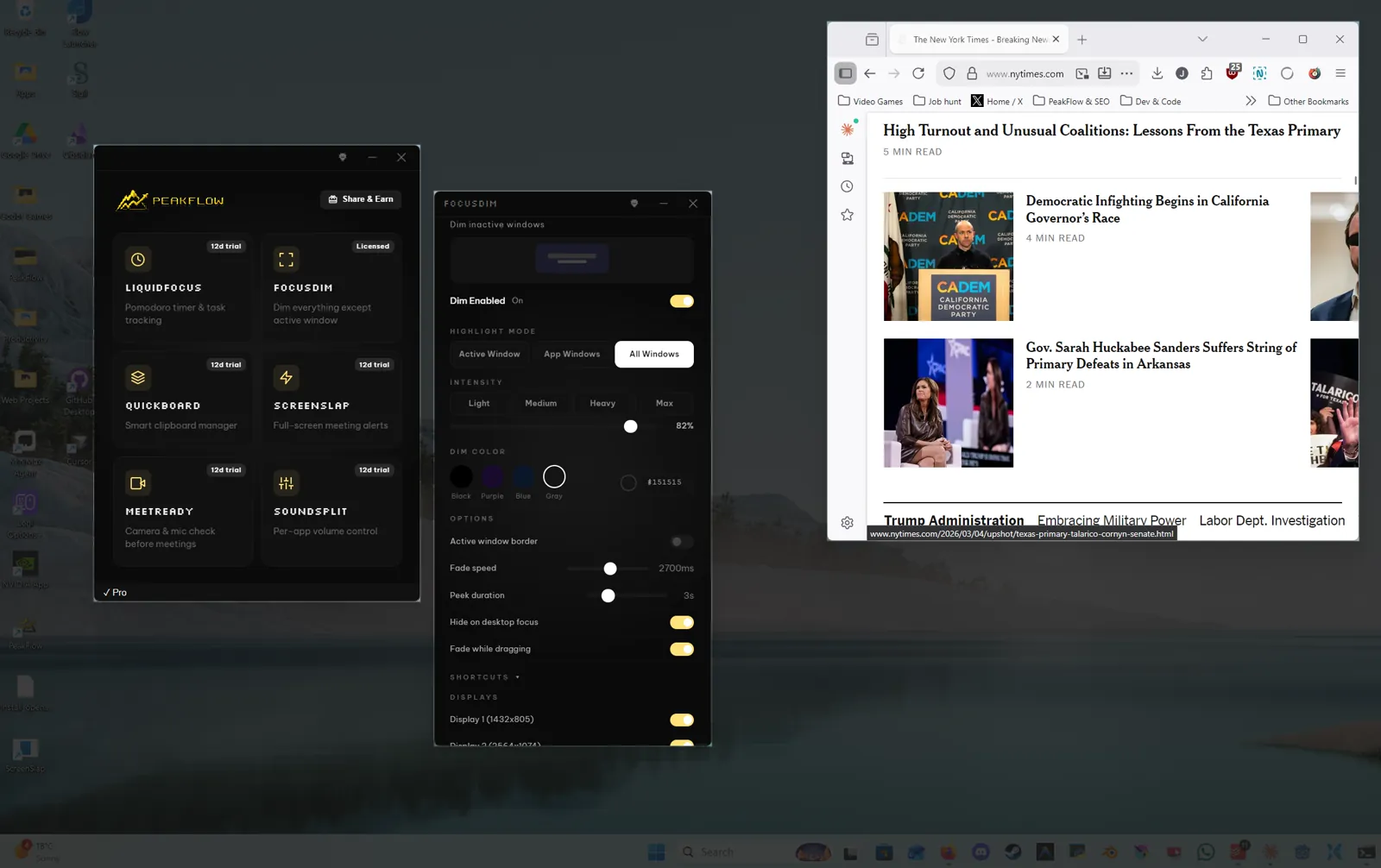
Dimming only the foreground window is Active mode, and it is the wrong mode when you need a second window or you are dragging a file. An editor can sit on one screen with a terminal from the same app on the other. Active mode keeps the editor bright and lets the terminal go dark the moment the editor is the window in front, so you type without a readable copy of the output.
The other windows of the same app
Two browser windows run into that same limit, with the notes going dark as soon as you click the page you are changing. You turn the dim off just to read the notes, which turns the dim off for every other window too. App mode leaves every window from the app in front bright. A click on the browser keeps its other windows bright beside it. A click on the editor dims the browser, with every editor window still bright. A chat window or a folder still dims, because that window belongs to a different app.
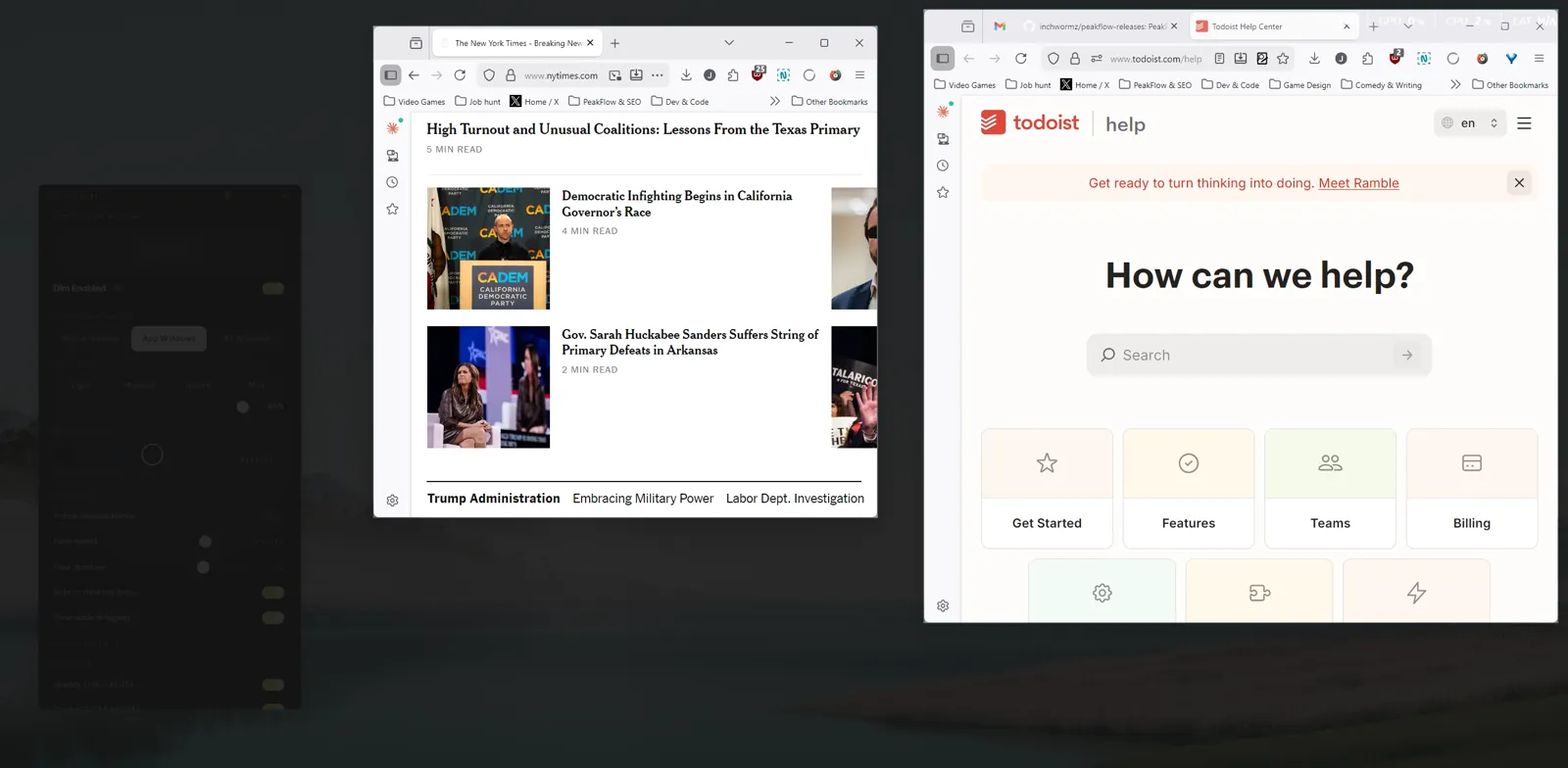
A file dragged onto a dimmed window
A file dragged from a folder into a chat, or from Downloads into the editor, meets the same wall in Active mode. The drop target is not the window you started from, so Active mode has already dimmed it and you are aiming at a window you cannot see clearly. Drag escape covers this case, and it is on by default. During a drag, the dimming fades and the drop target becomes visible again, with the dim back after you release the file. You do not hold a key to get that fade. HazeOver on Mac asks you to hold the fn key during the drag. FocusDim fades the dim on its own, with the dim back on the drop.
The desktop and the taskbar
Sometimes the other apps are not what you want darkened. The editor and the browser both need to stay bright, and the wallpaper, the desktop icons, and the badges on the taskbar are the part you want pushed back. All Windows mode dims the desktop and the taskbar, with the windows left bright. It does not pick a foreground window, with a click from the editor to the browser leaving both of them bright. Active mode is the one to leave behind in that case, because one bright window is no longer the whole task.
HazeOver on the Mac
HazeOver can keep every window of the same app bright, which lines up with App mode. All Windows mode, drag escape, and a dim color you can change sit on the FocusDim side. HazeOver is the Mac app, with FocusDim in this installer running on Windows 10 and Windows 11.
| Feature | HazeOver | FocusDim |
|---|---|---|
| Dim to active window | ✓ | ✓ |
| Highlight all app windows | ✓ | ✓ |
| All Windows mode (dim desktop only) | ✗ | ✓ |
| Automatic drag escape | ✗ | ✓ |
| Custom dim colors | ✗ | ✓ |
| Platform | macOS | Windows 10/11 |
Tray menu and settings
You switch highlight modes from the tray menu or from settings, and you do not restart Windows to change the mode. An excluded app stays bright even in Active mode, which is the control to use for a window you glance at and do not click. A monitor you do not want dimmed can be turned off in settings. The strength slider runs from 10% to 90%, with a default of 60%, and the dim color can be changed when black is too heavy on your screen.
The mode for the windows on screen
Active mode, the single bright window, fails for a second window and for a file drag. App mode keeps the rest of that app bright. All Windows mode dims the desktop and the taskbar. Drag escape stays on unless you turn it off. The download includes 14 days of Pro, with the free tier keeping the tools past that trial and with no account asked for at install.
Download FocusDim